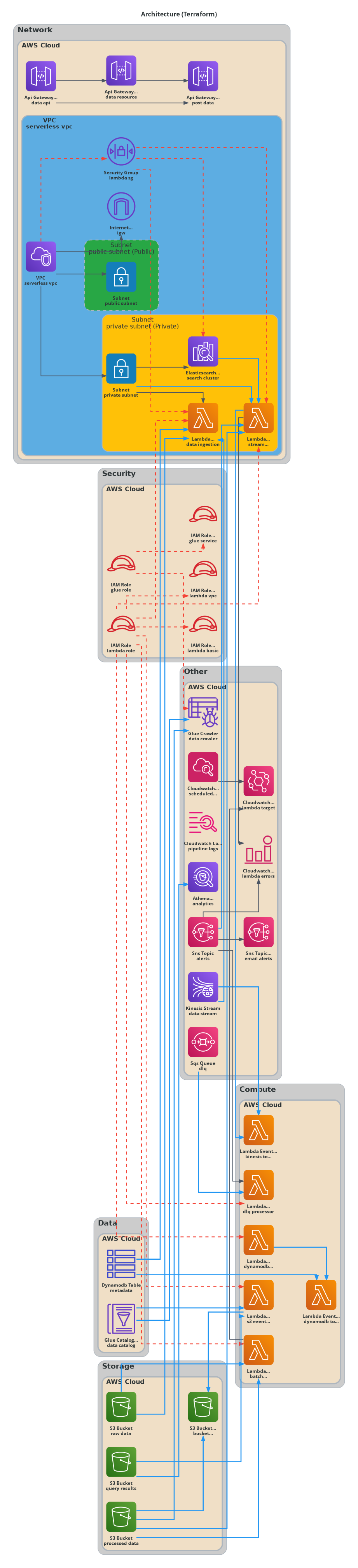
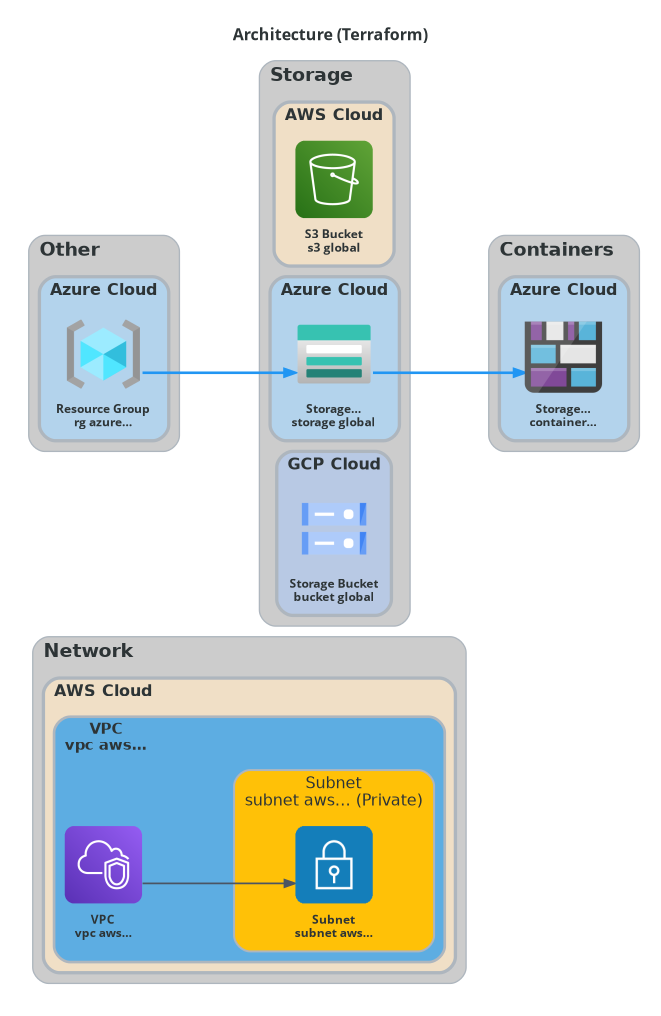
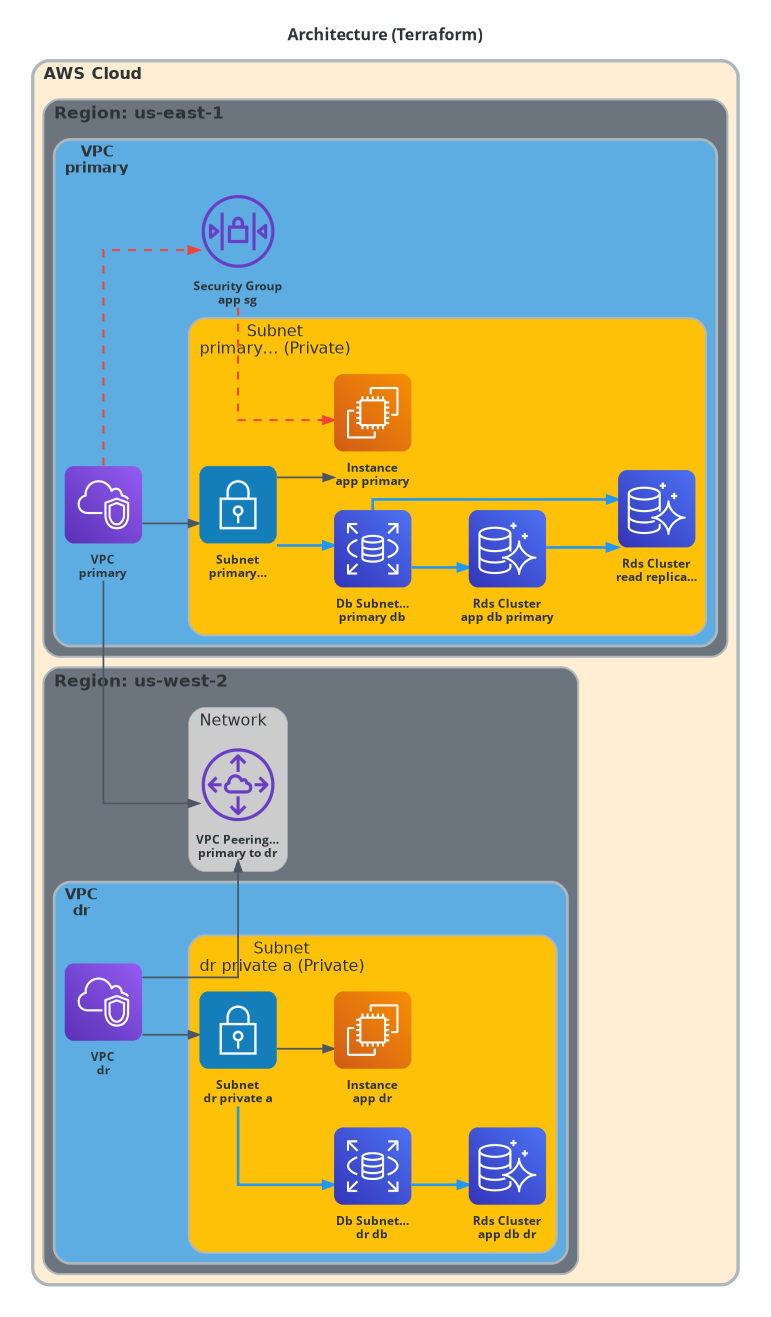
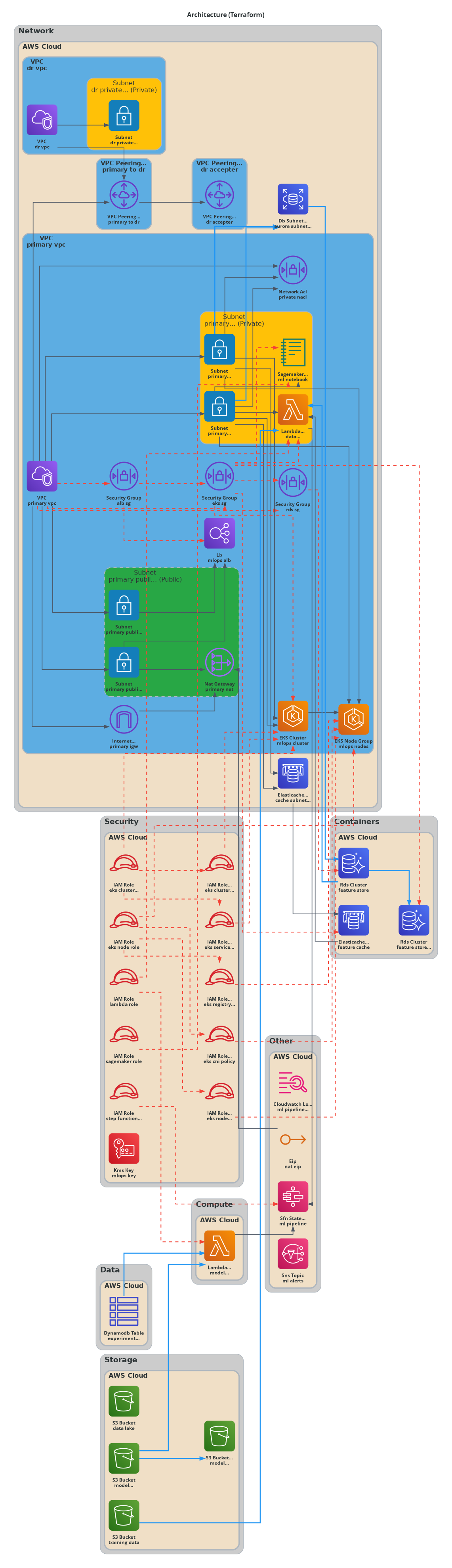
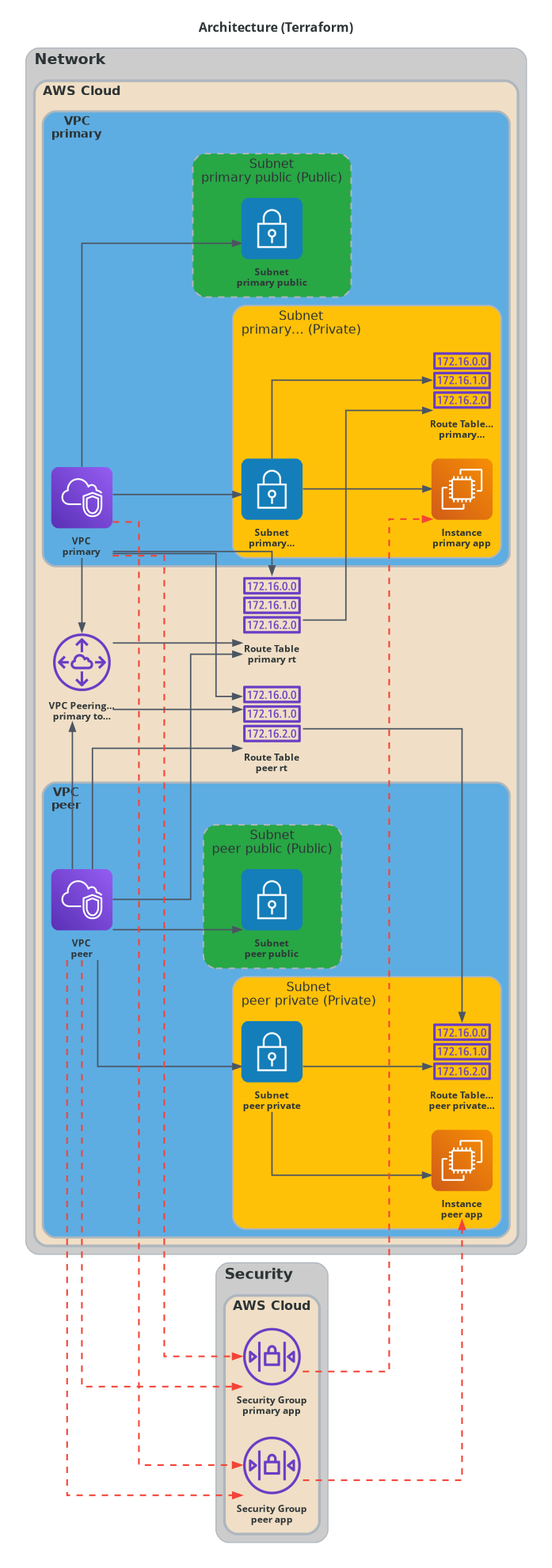
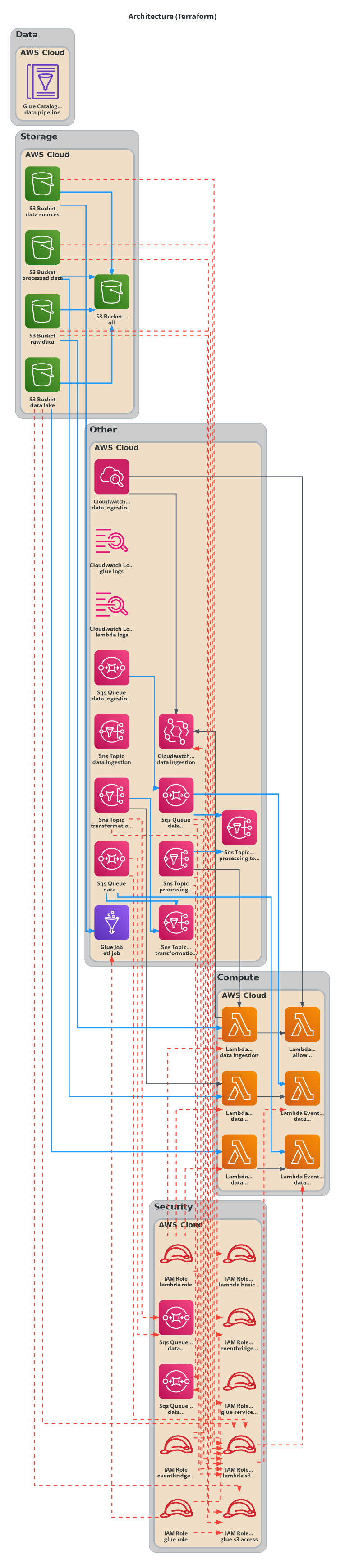
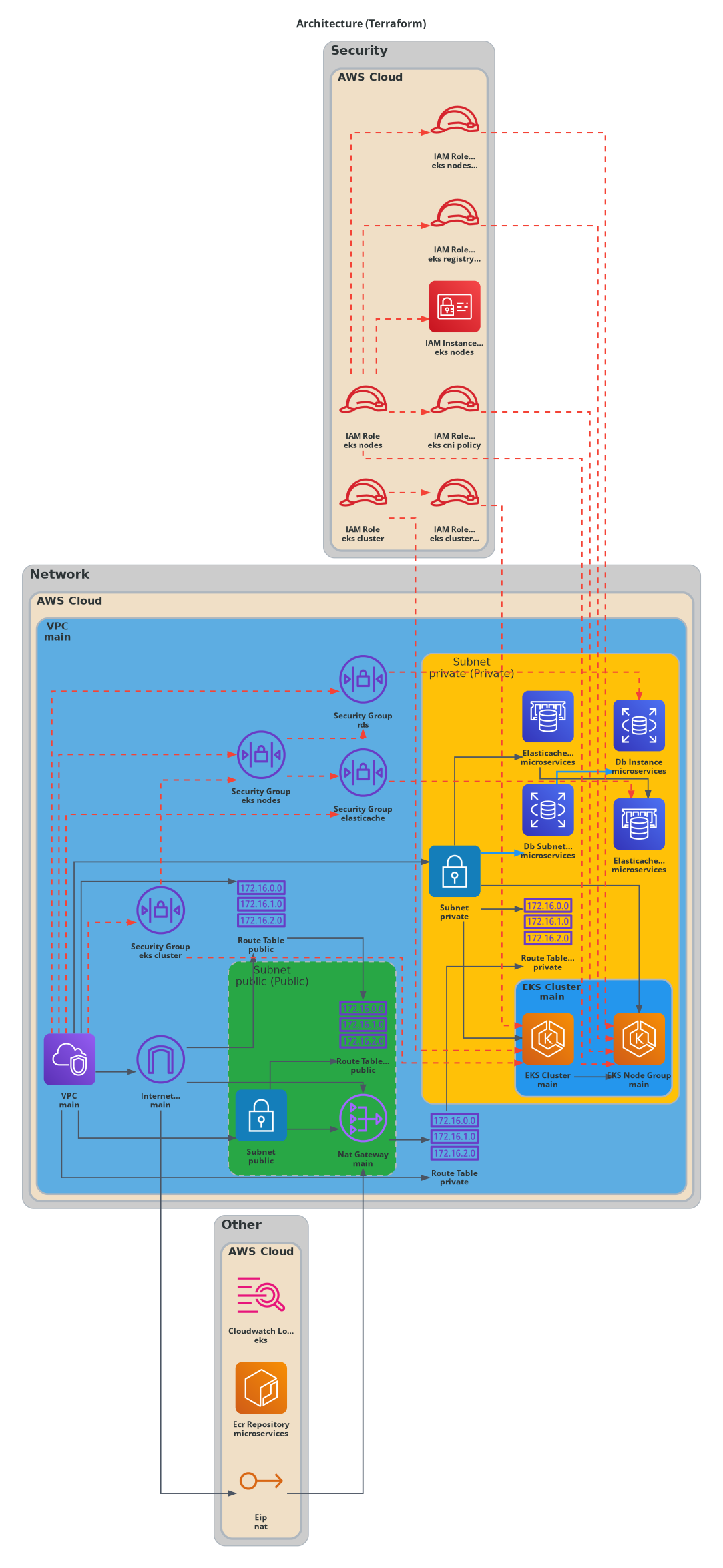
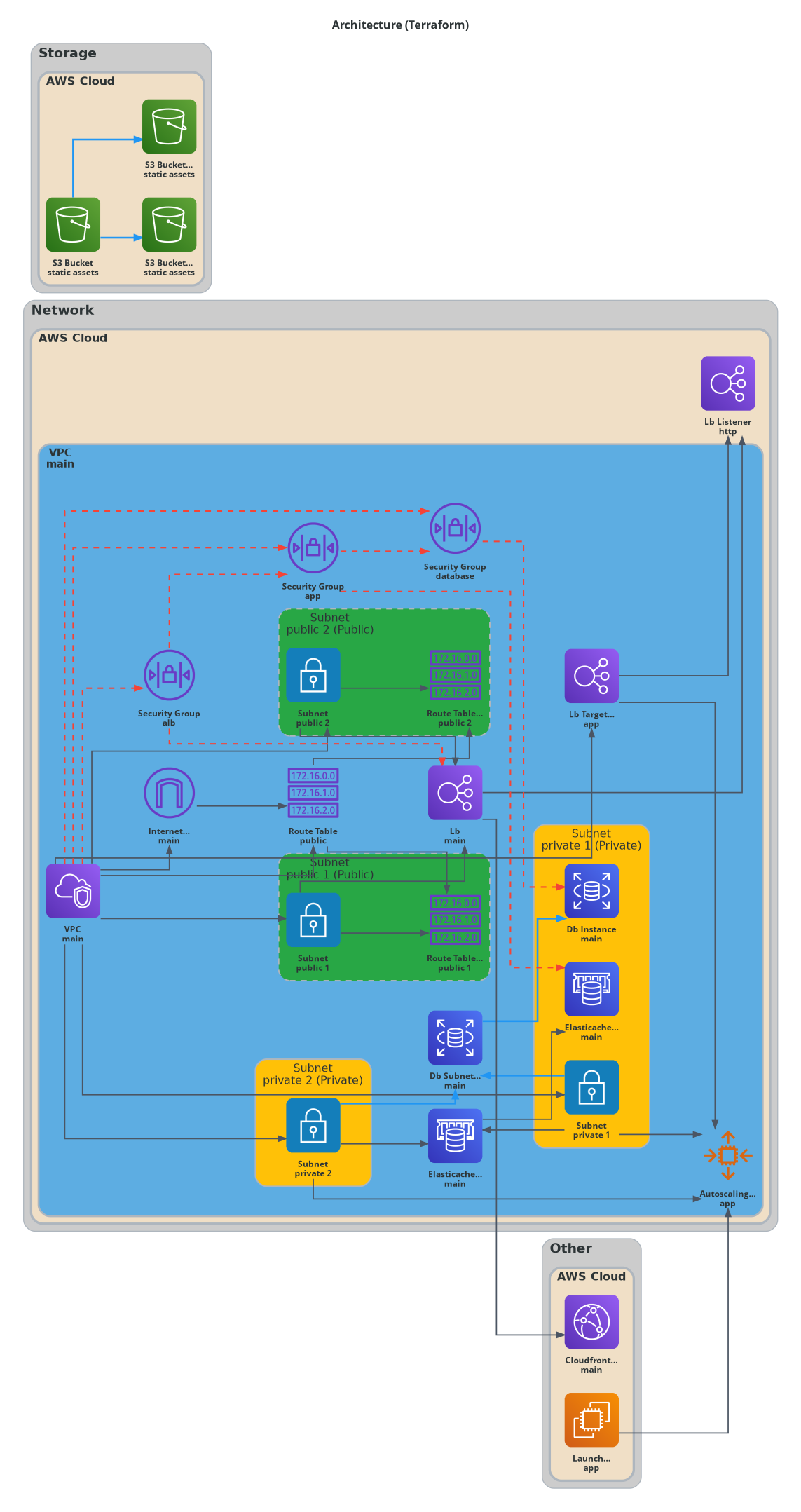
Auto-Generate Architecture Diagrams
from Your IaC

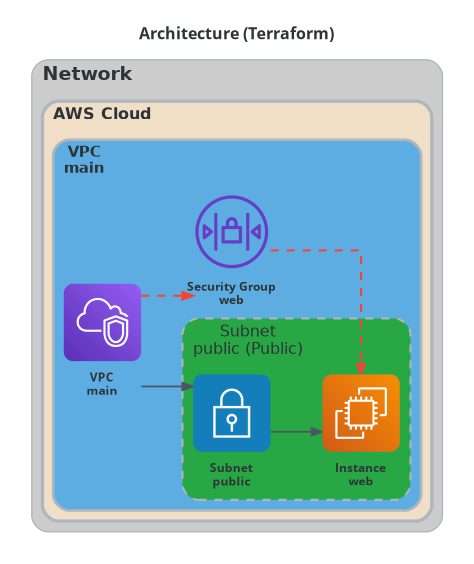
Transform Terraform, CloudFormation, and other Infrastructure-as-Code into beautiful, professional architecture diagrams. Automatically. In your CI/CD pipeline.

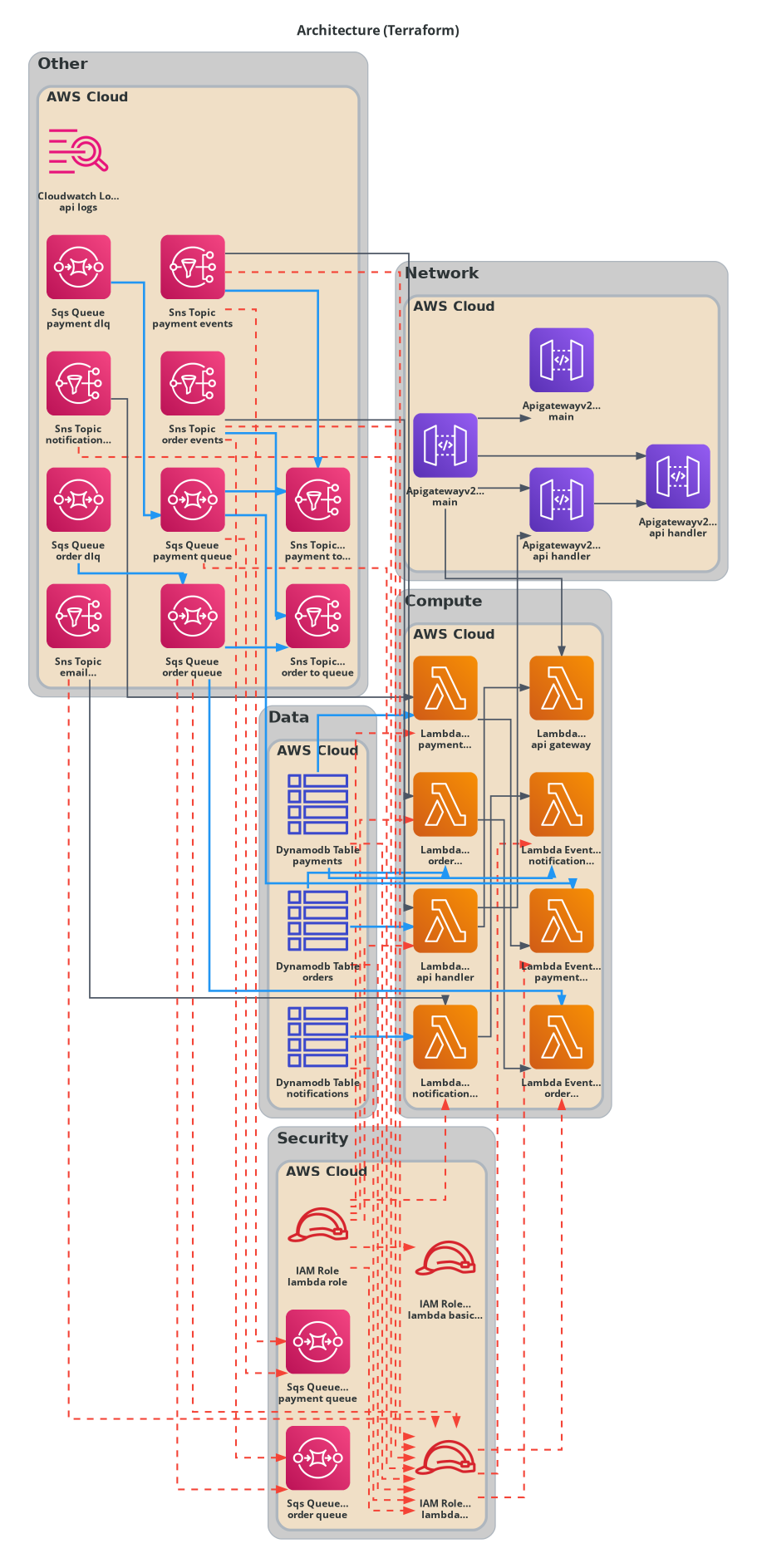
AWS
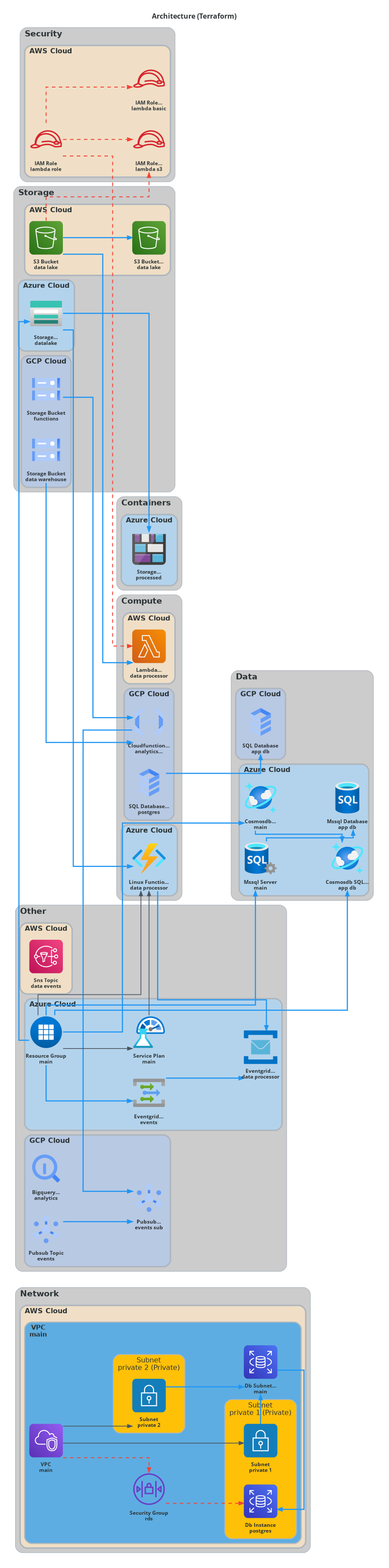
Azure
GCP
# template.yaml (CloudFormation)
AWSTemplateFormatVersion: '2010-09-09'
Description: Secure serverless website (AWS) - S3 private origin + CloudFront + WAF

Resources:
    LogsBucket:
        Type: AWS::S3::Bucket
        Properties:
            BucketEncryption:
                ServerSideEncryptionConfiguration:
                    - ServerSideEncryptionByDefault:
                            SSEAlgorithm: AES256

    SiteBucket:
        Type: AWS::S3::Bucket
        Properties:
            BucketEncryption:
                ServerSideEncryptionConfiguration:
                    - ServerSideEncryptionByDefault:
                            SSEAlgorithm: AES256
            VersioningConfiguration:
                Status: Enabled
            LoggingConfiguration:
                DestinationBucketName: !Ref LogsBucket
                LogFilePrefix: s3/

    SiteBucketPublicAccessBlock:
        Type: AWS::S3::BucketPublicAccessBlock
        Properties:
            Bucket: !Ref SiteBucket
            BlockPublicAcls: true
            IgnorePublicAcls: true
            BlockPublicPolicy: true
            RestrictPublicBuckets: true

    WafAcl:
        Type: AWS::WAFv2::WebACL
        Properties:
            Name: auto-arch-waf
            Scope: CLOUDFRONT
            DefaultAction: ...
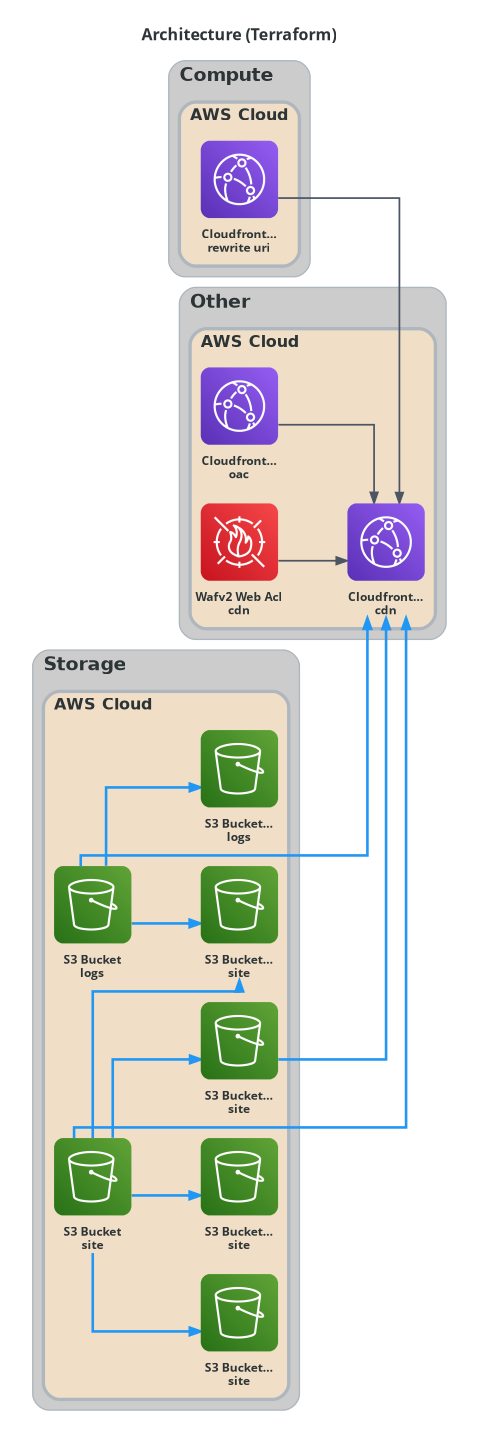
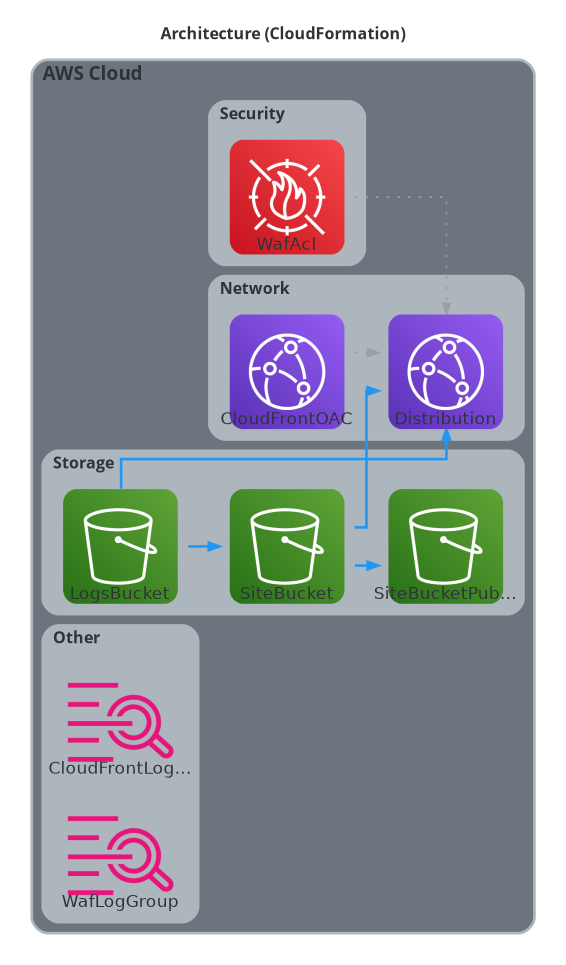
Generated Architecture Diagram

↑ Auto-generated from your CloudFormation code

Why Auto Architecture Diagram?

Keep your documentation in sync with your infrastructure, automatically.

🔄

Always Up-to-Date

Diagrams regenerate on every PR, ensuring documentation never drifts from reality.

☁️

Multi-Cloud Support

Native support for AWS, Azure, and GCP with official cloud icons and styling.

📝

Multiple Formats

Export to PNG, SVG, JPEG, Mermaid, and Markdown. Use anywhere.

🎨

Professional Icons

Uses official AWS, Azure, and GCP architecture icons for polished diagrams.

Zero Config

Works out of the box. Just add to your workflow and push.

🔗

Smart Detection

Automatically detects resource relationships and dependencies from your code.

🎨 Custom Icon Support

Beyond cloud provider icons - use custom icons for any architectural concept.

Data Pipeline Data Pipeline
Event Trigger Event Trigger
Message Queue Message Queue
Stream Processor Stream Processor
Scheduler Scheduler
Search Engine Search Engine
Custom Icons Demo - Serverless Data Pipeline

Serverless Data Pipeline with Custom Icons

A complete event-driven data pipeline architecture using custom icons for abstract concepts like data streams, event triggers, and processing stages.

Quick Start

Add to your GitHub Actions workflow in seconds.

📋 .github/workflows/diagram.yml

name: Update Architecture Diagram
on:
    pull_request:
        paths:
            - '**/*.tf'
            - '**/*.yaml'

jobs:
    diagram:
        runs-on: ubuntu-latest
        steps:
            - uses: actions/checkout@v4
            - name: Generate Architecture Diagram
                uses: suryakumaran2611/auto-arch-diagram@v1
                with:
                    iac_globs: **/*.tf\n**/*.yaml
                    out_dir: artifacts
                    image_formats: png,svg
                    mode: static
                    direction: LR
            - name: Upload Diagram Artifacts
                uses: actions/upload-artifact@v4
                with:
                    name: architecture-diagram
                    path: artifacts/

Best Practice: Use iac_globs to specify all relevant IaC files (Terraform, CloudFormation, etc.) and out_dir for organized output. Always upload generated artifacts for traceability.

View Full Documentation →

Publish & Replace Diagrams in Confluence

Automatically publish or robustly replace architecture diagrams in your Confluence pages using the Auto Arch Diagram GitHub Action.

🔗 Example Workflow: Publish to Confluence

jobs:
      diagram:
        runs-on: ubuntu-latest
        steps:
          - uses: actions/checkout@v4
          - uses: suryakumaran2611/auto-arch-diagram@v1
            with:
              publish_to_confluence: true
              confluence_url: https://your-domain.atlassian.net/wiki
              confluence_page_id: 123456
              confluence_username: ${{ secrets.CONFLUENCE_USER }}
              confluence_api_token: ${{ secrets.CONFLUENCE_API_TOKEN }}
              confluence_marker: ARCH_DIAGRAM_MARKER
    

Best Practice: Use a unique marker (e.g., ARCH_DIAGRAM_MARKER) in your Confluence page to target the diagram for replacement. The action will only update the image between these markers, ensuring robust and precise updates.

How to Add a Marker: In your Confluence page, add a comment or text like <!-- ARCH_DIAGRAM_MARKER --> before and after the diagram image. The action will replace the image between these markers.

Troubleshooting:

  • Ensure your Confluence credentials are stored as GitHub secrets.
  • Test on a non-production page before updating important documentation.
  • If the marker is not found, the action will not replace any image. Double-check marker spelling and placement.
  • For multiple diagrams, use different markers for each.
View Full User Guide →

Multiple Output Formats

Export your diagrams in the format that works best for you.

🖼️

PNG

High-quality raster images with transparent or white background

📐

SVG

Scalable vector graphics, perfect for documentation

🧜‍♀️

Mermaid

Renders natively in GitHub, Notion, Confluence & more

📄

Markdown

Ready to embed in your README or wiki